


Using The Touch-Screen Radio Controls
1. Press the MENU hard-key on the radio faceplate.
2. Touch the Rear VES soft-key to display the Rear VES Controls. If a channel list appears on the right side of the screen, touch the HIDE LIST soft-key to display the Rear VES Controls screen.
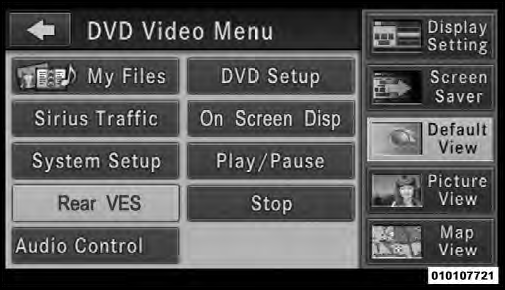
Rear VES Soft-key
3. Touch the 1 soft-key and then the DISC soft-key in the MEDIA column. To exit touch the back arrow soft-key at the top left of the screen.
NOTE: The “1” and “2” soft-keys are displayed for the headphone channels. Touch 1 or 2 based on which channel you want to change, select the new mode from the available list on the right. Modes that are unavailable are greyed-out.
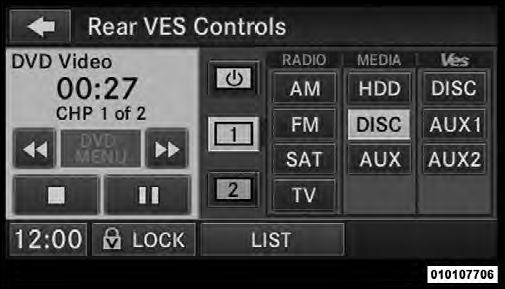
Select Channel/Screen 1 And DISC In The MEDIA Column
NOTE:
• To view a DVD on the radio press the RADIO/MEDIA
hard-key, on the radio faceplate, then touch the DISC
tab soft-key and then the VIEW VIDEO soft-key.
• Viewing a DVD on the Touch-Screen radio screen is not available in all states/provinces, and the vehicle must be stopped, and the shift lever must be in the PARK position for vehicles with automatic transmission.
In vehicles with manual transmission the parking brake must be engaged.
• Touching the screen on a Touch-Screen radio while a DVD is playing brings up basic remote control functions for DVD play such as scene selection, Play, Pause, FF, RW, and Stop. Pressing the X in the upper corner will turn off the remote control screen functions.
See also:
Onboard Diagnostic System – OBD II
Your vehicle is equipped with a sophisticated onboard
diagnostic system called OBD II. This system monitors
the performance of the emissions, engine, and automatic
transmission control systems. ...
Operation
Voice commands can be used to operate the Uconnect™
Phone and to navigate through the Uconnect™ Phone
menu structure. Voice commands are required after most
Uconnect™ Phone prompts. You wi ...
Event Data Recorder (EDR)
This vehicle is equipped with an event data recorder
(EDR). The main purpose of an EDR is to record, in
certain crash or near crash-like situations, such as an air
bag deployment or hitting a ro ...